How to Put a Daily Quote Widget on Your iPhone
Here’s how to add a quote widget to your iPhone Home Screen and Lock Screen, and choose whether it shows new quotes picked for you, quotes you’ve saved, or one line that stays put.
Which quote widget do you want?
Well Said has three, each in small and medium Home Screen sizes and a rectangular Lock Screen size.
- A new quote, picked for you: For You.
Shows quotes picked for the themes you chose and changes as new ones arrive. Works within the free allowance.
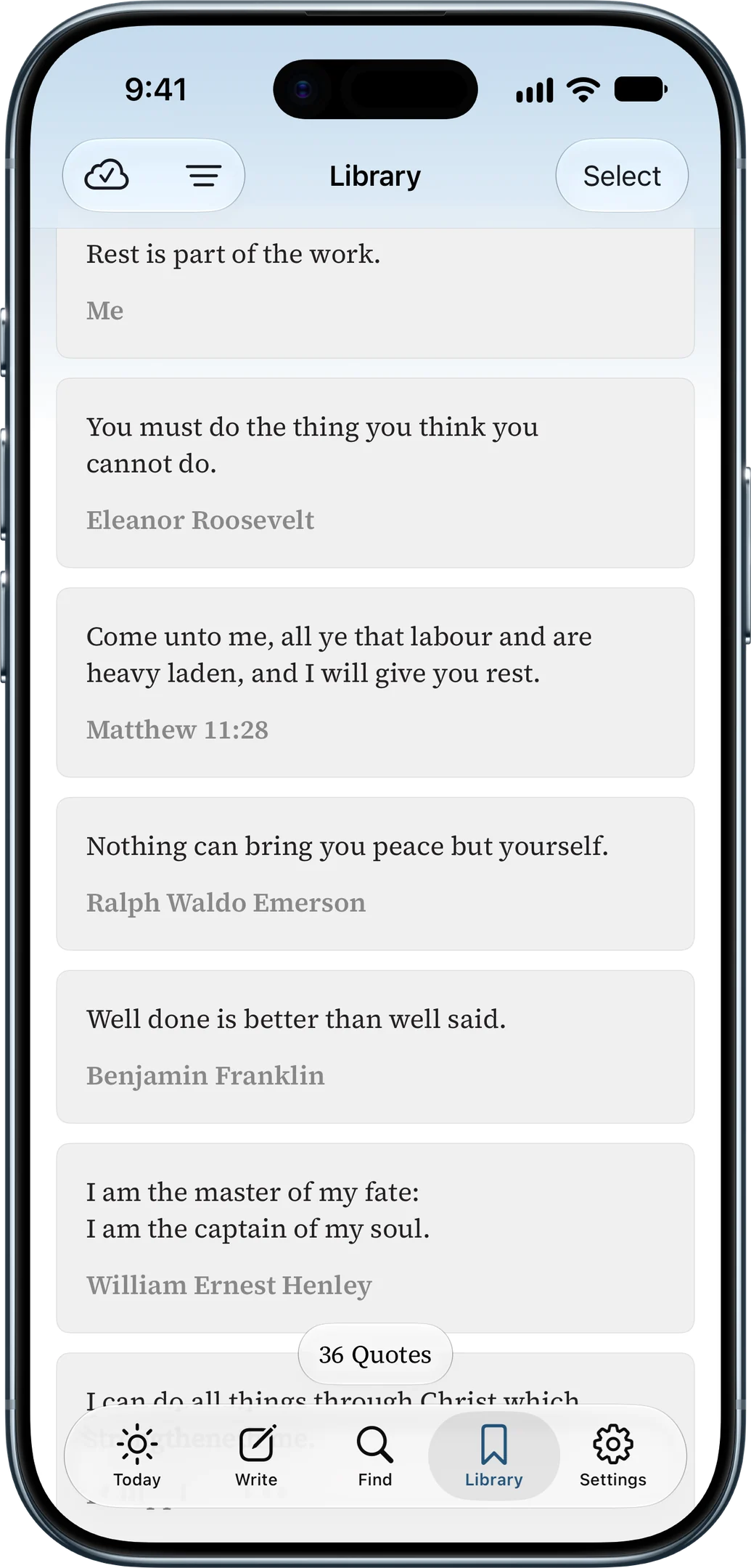
- Your own saved quotes: Library.
Shows a different one of your recent saves each day, changing at midnight. Needs a subscription.
- One quote that stays put: Single quote.
Pick one saved quote, verse, or line of your own, and it stays until you change it. This is how you make a custom quote widget. Needs a subscription.
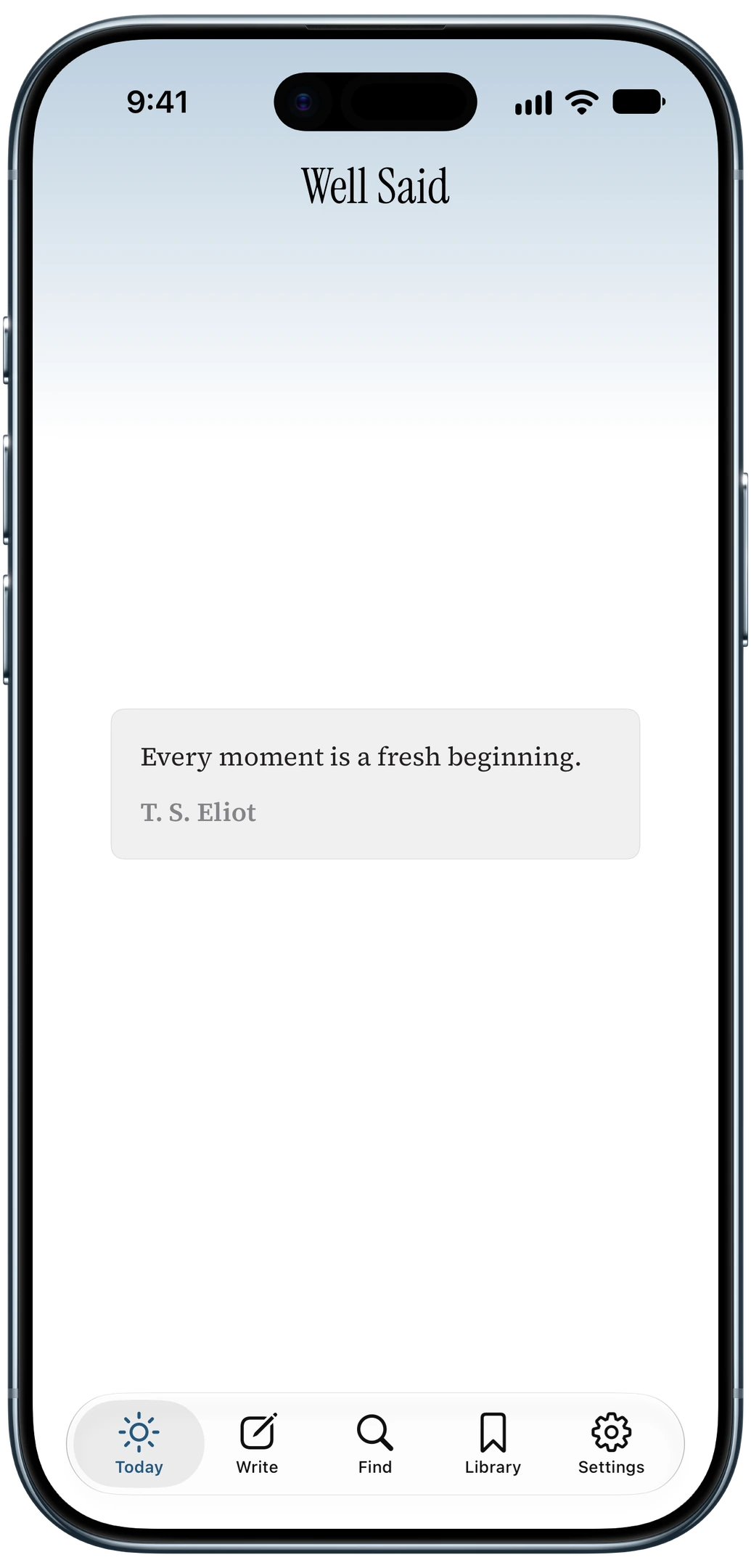
How to add a quote widget to your Home Screen
- Download Well Said and sign in.
Open For You once so the widget has quotes to show.
- Touch and hold an empty area of your Home Screen until the apps jiggle.
- Tap Edit, then Add Widget, and search for Well Said.
- Choose For You, Library, or Single quote, swipe to pick a size, and tap Add Widget.
- For Single quote, choose the quote.
Touch and hold the widget, tap Edit Widget, and pick a saved quote.
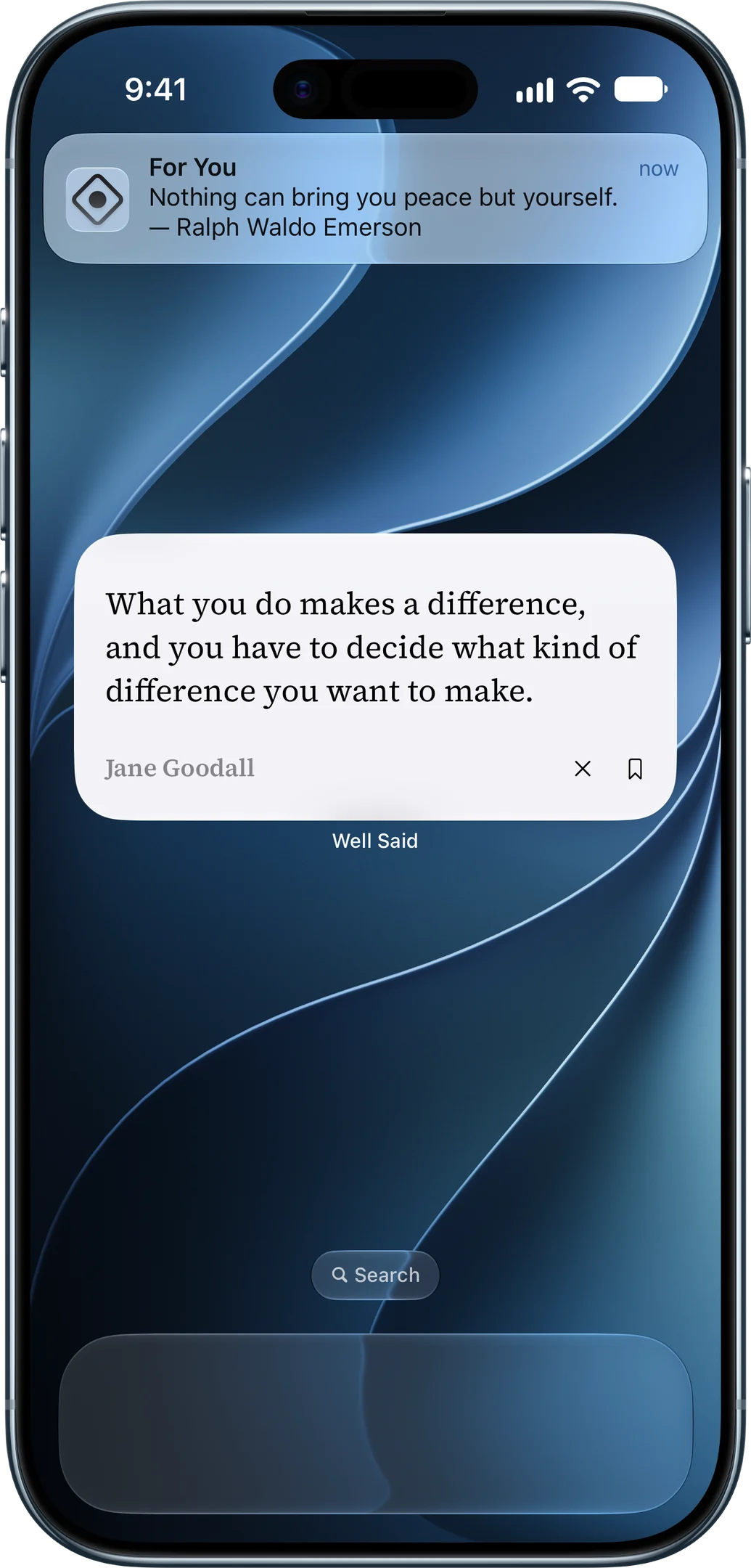
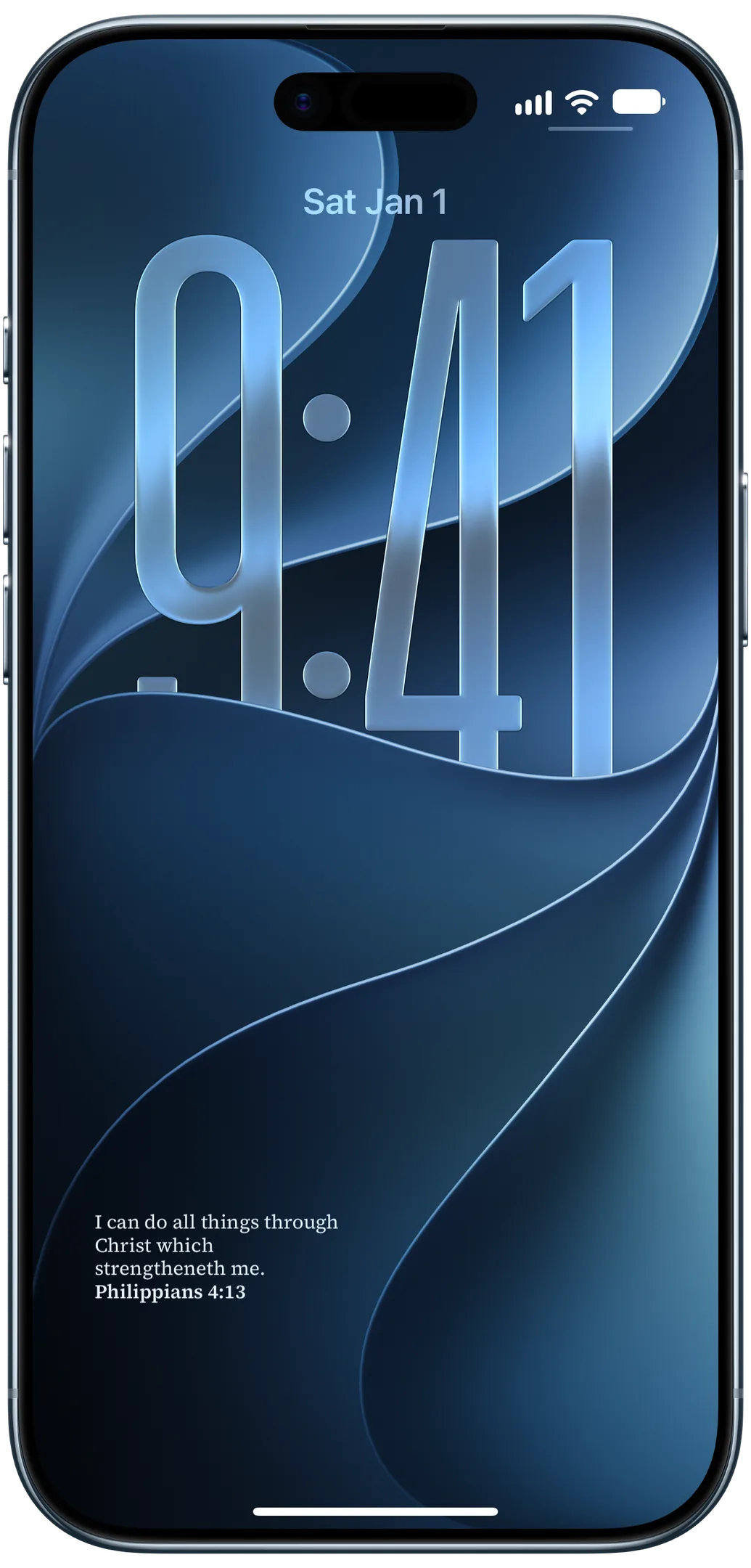
How to put a quote on your iPhone Lock Screen
- Touch and hold your Lock Screen, then tap Customize and choose the Lock Screen.
- Tap the widget area below the clock.
- Find Well Said and tap For You, Library, or Single quote.
- For Single quote, choose the quote.
While you’re still customizing, tap the widget you added and pick a saved quote.
- Tap Done.
Lock Screen widgets are small, so longer quotes get cut off. Tap the widget to read the whole quote in Well Said.
Make the widget yours
- Pick your themes.
In For You, choose themes like Courage & resilience or Faith & spirituality and add up to three life events. Turn on Bible verses to mix in Scripture.
- Save the quotes you love.
Save from For You, Find, or Ask, and the Library widget brings them back.
- Write your own.
In Write, add a line and who said it, like your grandmother’s favorite saying, then show it with the Single quote widget.
- Change it anytime.
On the Home Screen, touch and hold the widget, then tap Edit Widget. On the Lock Screen, touch and hold, tap Customize, then tap the widget.
Questions
Is the quote widget free?
The For You widget works within the free allowance. The Library and Single quote widgets need a subscription.
How often does the quote change?
Library shows a new saved quote each day at midnight. For You updates as new quotes are picked for you. Single quote changes only when you change it.
Can I put my own quote on my Lock Screen?
Yes. Add it in Write, then pick it in the Single quote widget on your Lock Screen, which needs a subscription.
Why a widget instead of a quote wallpaper?
You stop noticing a wallpaper after a week. A widget keeps changing and can show words you chose, and you can still keep a quiet wallpaper behind it.
Does it work on iPad?
Yes, and your library syncs between iPhone and iPad.